Hi all,
Another cool component in Oracle ADF is af:showPrintablePageBehavior with just simple click you can set the any af:table component as Printable page using af:showPrintablePageBehavior.
In this post i will continue to enhance my last post example. I will just add another menu command item in our File menu of af:panelCollection component and use Printable page behaviour inside.
Steps to follow:
- Right click af:menu and choose insert inside af:menu > Command Menu Item and set Text as "Print Data" as shown in the slide.
- Drop Show Printable Page Behavior component from component palette on newly created menu.
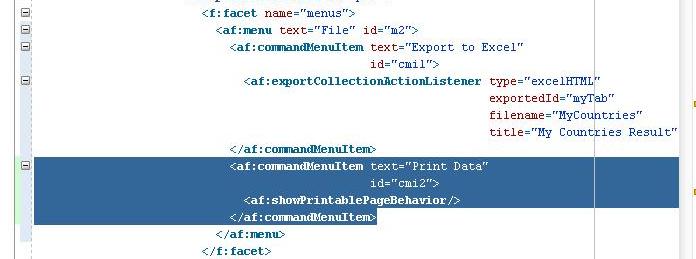
Alternately you can just put this code in your JSF page source under af:menu tags later you will feel more comfortable doing coding directly in source file.
- Thats all right click the page and choose Run
- Filter the Records of table only Region > 2 and press enter choose Print Date from File Menu
You can see with Oracle ADF how easy is to implement some cool features in your application.
Download my completed example
Cheers,
Baig
Tuesday, April 6, 2010
Saturday, April 3, 2010
Exporting table to Excel in Oracle ADF
Hi,
I will continue to enhance my Working with Popups post and will add a export to excel functionality to af:table component. You will know the power of ADF with just simple clicks you are able to add this functionality to table.
What you will learn
- Functionality of af:panelCollection
- Working with menus
- Adding Exporting to excel behavior to the af:table
Download this workspace change connection settings and follow steps
Adding Panel Collection
- Open the countries.jspx page and select af:table component in structure window give this table a proper name i.e "myTab" by setting id property of the table in property Inspector.
- Right click the af:table component and choose "Surround with..." and Choose Panel Collection
Note: A panel component that aggregates collection components like table, treeTable and tree to display standard/application menus, toolbars and statusbar items
Adding a Menu in Panel Collection
- Drop af:menu component in the Menu facet of the Panel collection set the Text property as "File"
- Drop af:menuitem on af:menu set the Text property as "Export to Excel"
Adding Export behavior to Menu
- Drop an af:exportCollectionActionListener to the Menu item. A dialog box will appear choose type as the only option available "excelHTML" Choose exportedId from the menu choose edit navigate through the nodes and find af:table "myTab" click OK and OK again.
- Complete Structure window would looks like this
- Set the properties of the af:exportCollectionActionListener as shown in the slide for more meaningful file name and title of worksheet
Run the Form
- Right click on the countries.jspx page and choose Run
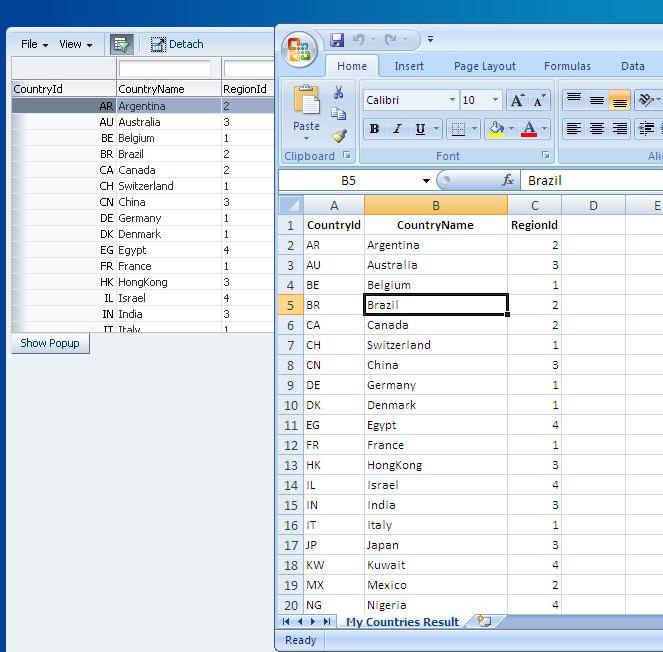
- Page similar to this will appear Choose File > Export to Excel from the Menu
- Excel file save dialog will appear
I hope this post would be helpful feel free to comment
Download my working example
Cheers,
Baig
I will continue to enhance my Working with Popups post and will add a export to excel functionality to af:table component. You will know the power of ADF with just simple clicks you are able to add this functionality to table.
What you will learn
- Functionality of af:panelCollection
- Working with menus
- Adding Exporting to excel behavior to the af:table
Download this workspace change connection settings and follow steps
Adding Panel Collection
- Open the countries.jspx page and select af:table component in structure window give this table a proper name i.e "myTab" by setting id property of the table in property Inspector.
- Right click the af:table component and choose "Surround with..." and Choose Panel Collection
Note: A panel component that aggregates collection components like table, treeTable and tree to display standard/application menus, toolbars and statusbar items
Adding a Menu in Panel Collection
- Drop af:menu component in the Menu facet of the Panel collection set the Text property as "File"
- Drop af:menuitem on af:menu set the Text property as "Export to Excel"
Adding Export behavior to Menu
- Drop an af:exportCollectionActionListener to the Menu item. A dialog box will appear choose type as the only option available "excelHTML" Choose exportedId from the menu choose edit navigate through the nodes and find af:table "myTab" click OK and OK again.
- Complete Structure window would looks like this
- Set the properties of the af:exportCollectionActionListener as shown in the slide for more meaningful file name and title of worksheet
Run the Form
- Right click on the countries.jspx page and choose Run
- Page similar to this will appear Choose File > Export to Excel from the Menu
- Excel file save dialog will appear
I hope this post would be helpful feel free to comment
Download my working example
Cheers,
Baig
Thursday, April 1, 2010
Revisiting Jdeveloper Timezone Error
Hi,
Yesterday i was in ADF seminar helding in Almaty got some good background about ADF technology.
and during presenting Instructor was running sample ADF application and got the same error about timezone region which i faced when i started ADF so i provide the solution to the class ;)
I updated my blog post about this error with better description
More info here
Have a nice day,
Baig
Yesterday i was in ADF seminar helding in Almaty got some good background about ADF technology.
and during presenting Instructor was running sample ADF application and got the same error about timezone region which i faced when i started ADF so i provide the solution to the class ;)
I updated my blog post about this error with better description
More info here
Have a nice day,
Baig
Tuesday, March 30, 2010
Creating and displaying Popups in Oracle ADF
Hi all,
This post is about How to Create and display Popups in ADF application. In popups you can display different types of windows like Dialogs, NoteWindow, Panel window etc etc.
In this post i will show displays popups dialogs by
- Using af:showPopupBehavior JSF tag on a Command button
- Calling Javascript code using af:resource and af:clientlistener
Example Scenario:
In ADF table component when user double click any row a popup dialog will display to show which record the user has clicked. Also the same Action on simple button press. I am using Countries table in HR schema to displaying ADF read only table in a simple JSF page.
I assumed you have created JSF page with Read only table of CountiresView Binding and also has af:commandbutton after the table Form looks like this
Creating Pop-ups:
- Drop af:popup component any where on your JSF Page set its id as "poptable" and ContentType = LazyUncached. (Drop popup at some free facet)
- Drop af:dialog component inside popup component
- Set the property of af:dialog type to OK (to display only OK button in a dialog) and
- Drop the CountryName field from DataControl to Dialog window
- Delete it ...Yes you read correctly its kind of Trick to create binding we will use it in a different way
- Drop af:outputText in Dialog set the Value to
"You have clicked #{bindings.CountryName} Country"
Your Structure window would be like this
Display popup on button click:
- Drop af:showPopupBehavior on af:commandbutton.
- Set the popId = poptable (our popup name) and type as action.
To display on Double click on table:
- Drop af:clientlistener on af:table component.
- Set the Method name as "showPopupFromAction" (Name of Javascript method we will create this method in a while) and choose type as "dblClick" for double click actions on Table component.
- Drop af:resource tag in your document set the type as javascript and Copy and paste the following code in the source
Note:The af:resource tag is a way to include CSS and JavaScript in the document.
Your structure window would be like this
At runtime Navigate to any record press Show popup button or Double click on record a Popup should display as shown in the slide
Download Working Example
Feel free to comment.
Cheers,
Baig
This post is about How to Create and display Popups in ADF application. In popups you can display different types of windows like Dialogs, NoteWindow, Panel window etc etc.
In this post i will show displays popups dialogs by
- Using af:showPopupBehavior JSF tag on a Command button
- Calling Javascript code using af:resource and af:clientlistener
Example Scenario:
In ADF table component when user double click any row a popup dialog will display to show which record the user has clicked. Also the same Action on simple button press. I am using Countries table in HR schema to displaying ADF read only table in a simple JSF page.
I assumed you have created JSF page with Read only table of CountiresView Binding and also has af:commandbutton after the table Form looks like this
Creating Pop-ups:
- Drop af:popup component any where on your JSF Page set its id as "poptable" and ContentType = LazyUncached. (Drop popup at some free facet)
- Drop af:dialog component inside popup component
- Set the property of af:dialog type to OK (to display only OK button in a dialog) and
- Drop the CountryName field from DataControl to Dialog window
- Delete it ...Yes you read correctly its kind of Trick to create binding we will use it in a different way
- Drop af:outputText in Dialog set the Value to
"You have clicked #{bindings.CountryName} Country"
Your Structure window would be like this
Display popup on button click:
- Drop af:showPopupBehavior on af:commandbutton.
- Set the popId = poptable (our popup name) and type as action.
To display on Double click on table:
- Drop af:clientlistener on af:table component.
- Set the Method name as "showPopupFromAction" (Name of Javascript method we will create this method in a while) and choose type as "dblClick" for double click actions on Table component.
- Drop af:resource tag in your document set the type as javascript and Copy and paste the following code in the source
Note:The af:resource tag is a way to include CSS and JavaScript in the document.
/** * Shows a popup from an
"action" type event. *
@param {AdfActionEvent}
actionEvent the event being
handled */
function showPopupFromAction(actionEvent) {
actionEvent.cancel();
var eventSource = actionEvent.getSource();
var popup = eventSource.findComponent("poptable");
popup.show();
}
Your structure window would be like this
At runtime Navigate to any record press Show popup button or Double click on record a Popup should display as shown in the slide
Download Working Example
Feel free to comment.
Cheers,
Baig
Sunday, March 28, 2010
Creating Master-detail form in Oracle ADF
Hi all,
Today i will show how to create simple master detail form in ADF which would help people coming from 4GL (Forms Developer) technology to ADF.
After completion of all steps the final result would be like this
Pre-requisites:
- HR Schema in Oracle database with tables Departments and Employees.
- Oracle Jdeveloper 11g 11.1.1.2.0 you can download from OTN.
Creating EO, VO, VL and AM (Entity Object, View Object, ViewLink and Application Module)
- Create new Application named masterDetailApp based on ADF Fusion template.
- Create Connection named hr.
- Create EOs based on ADFBC from tables Departments, Employees (demo.model.entities) package
- Create VOs names DepmentsView and EmployeeView based on those EOs (demo.model.queries)
- Create ViewLink (Viewlink is a Association or join condition between 2 View Objects) between VOs named DeptEmployeeVL.
- Right click on the package demo.model.queries and choose New View Link named it DeptEmployeeVL as shown in the Slide
Today i will show how to create simple master detail form in ADF which would help people coming from 4GL (Forms Developer) technology to ADF.
After completion of all steps the final result would be like this
Pre-requisites:
- HR Schema in Oracle database with tables Departments and Employees.
- Oracle Jdeveloper 11g 11.1.1.2.0 you can download from OTN.
Creating EO, VO, VL and AM (Entity Object, View Object, ViewLink and Application Module)
- Create new Application named masterDetailApp based on ADF Fusion template.
- Create Connection named hr.
- Create EOs based on ADFBC from tables Departments, Employees (demo.model.entities) package
- Create VOs names DepmentsView and EmployeeView based on those EOs (demo.model.queries)
- Create ViewLink (Viewlink is a Association or join condition between 2 View Objects) between VOs named DeptEmployeeVL.
- Right click on the package demo.model.queries and choose New View Link named it DeptEmployeeVL as shown in the Slide
Tuesday, March 23, 2010
ADF-How to find rows in an Iterator
Hi all,
As you might know that i came from 4GL background and these days i am exploring Oracle ADF.
Subject:
I am working on Sample Calendar application which i will post when i will complete it.
In that application I have 2 iterators named AdfCalendarIterator and AdfCalendarINSERTIterator based on same View object called AdfCalendarVO
I have created 2 instances of VO to separate CRUD (Create Read Update Delete) operations.
I was not able to find simple solution on Google so i decided to share for ADF newbies
Solution:
On Managed bean write something similar
Note: I modified the example for understandability we assumed that we have only 1 column primary key
For more detail on particular function or procedure right click on it in JDeveloper and select Go to Javadoc... also check Oracle Fusion Developer guide
Feel free to comment and post better examples.
Happy learning,
Baig
As you might know that i came from 4GL background and these days i am exploring Oracle ADF.
Subject:
I am working on Sample Calendar application which i will post when i will complete it.
In that application I have 2 iterators named AdfCalendarIterator and AdfCalendarINSERTIterator based on same View object called AdfCalendarVO
I have created 2 instances of VO to separate CRUD (Create Read Update Delete) operations.
I was not able to find simple solution on Google so i decided to share for ADF newbies
Solution:
On Managed bean write something similar
Note: I modified the example for understandability we assumed that we have only 1 column primary key
//Primary key value if you have Number then replace with anotherVariable
String currid = "A001";
// 1. Access the binding container
DCBindingContainer bc = (DCBindingContainer)getBindings();
// 2. Find a named iterator binding
DCIteratorBinding iter =
(DCIteratorBinding)bc.findIteratorBinding("AdfCalendarINSERTIterator");
// 3. Create a Key object
Key key = new Key(new Object[] { currid });
//4. Get the RowSetIterator Object
RowSetIterator rsi = iter.getRowSetIterator();
//5. Find the row in the Iterator using findByKey funtion by passing Key object
Row row = rsi.findByKey(key, 1)[0];
// 6. Set the Current row in Iterator (findByKey does not Navigate to current row)
rsi.setCurrentRow(row);
For more detail on particular function or procedure right click on it in JDeveloper and select Go to Javadoc... also check Oracle Fusion Developer guide
Feel free to comment and post better examples.
Happy learning,
Baig
Subscribe to:
Posts (Atom)